

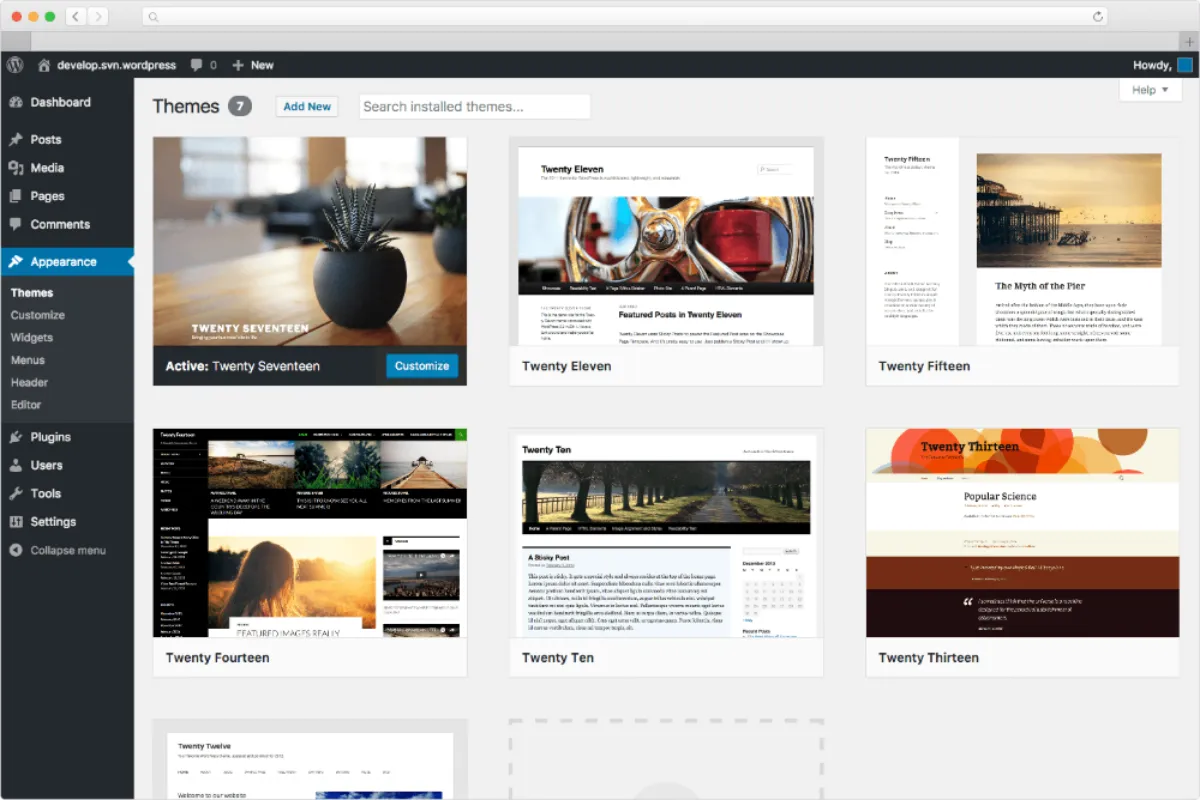
Many WordPress users notice their sites load slowly and blame plugins or heavy themes right away. Slow WordPress Site? Fix caching layers first before anything else. But in most cases, the real problem comes from poor caching setup. A good caching strategy can cut load times in half or more without removing features you need from the plugins that matter on your layout.
This guide walks through why caching matters, common mistakes, and practical fixes that work in 2026. You will learn how to check your current setup, choose the right tools, and see real improvements.
Site speed affects everything. Visitors leave if pages take too long. Google ranks faster sites higher. Slow loads hurt sales in shops or ad views on blogs. WordPress powers millions of sites, from personal blogs to big stores. It generates pages dynamically, which means the server builds each view from scratch. That takes time. Caching stores ready versions to serve faster.
People often install dozens of plugins and wonder why things drag. Plugins add functions, but a solid cache handles the extra work well. Themes with fancy designs load more files. Lightweight ones help a bit, but caching gives bigger gains. Hosting plays a role too. Cheap shared plans struggle with traffic. Good caching makes even basic hosting perform better.
Why Caching Is the First Fix for Slow Sites
Caching saves copies of pages or parts so the server skips rebuilding them every time. Imagine a busy restaurant. Without prep, cooks make each meal from scratch. With prep, popular dishes wait ready. Your site works the same. Visitors get pre-made content fast.
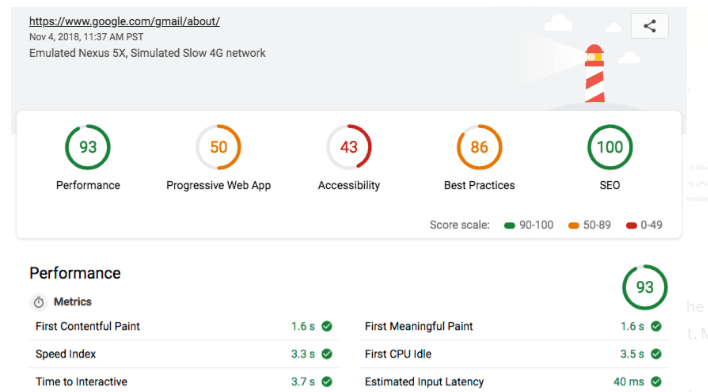
Tests show uncached WordPress sites load in 3-10 seconds or more. Proper caching drops that to under 2 seconds often. Tools like GTmetrix or PageSpeed Insights reveal the difference. Slow sites lose half their visitors in the first few seconds.
In 2026, mobile use dominates. People browse on phones with spotty connections. Fast sites keep them engaged. Core Web Vitals from Google measure real-user speed. Caching improves Largest Contentful Paint and Time to First Byte directly.
Common Reasons WordPress Sites Stay Slow Despite Plugins
Users disable plugins one by one, hunting for the culprit. That rarely solves much. The issue hides in caching layers not set up right. No page cache means full PHP processing each visit. Missing browser cache forces redownloads of images and styles.
Many skip preloading. Cache needs to build copies ahead of visits. Without it, first loads stay slow. Minification combines and shrinks files. Ignoring that leaves bloat. Database queries repeat without object cache. Images load full size if no optimization ties in.
Hosting without server cache like Varnish or Redis limits gains. Free plugins work but need manual tweaks. Conflicts arise from running multiple caches.
Understanding the Main Caching Layers
WordPress benefits from several cache types working together. Think of them as layers building speed step by step.
Browser caching tells visitors’ devices to keep files locally. The next visit pulls from their machine, not the server. Set expires headers for images, CSS, and JavaScript. Most plugins handle this easily.
Page caching saves full HTML versions of pages. Dynamic content like logged-in views or carts needs exceptions. Static copies serve guests fast.
Object caching stores database query results. WordPress runs many queries per page. Redis or Memcached speed repeats. Useful for busy sites with lots of content.

Server-level cache sits above WordPress. Varnish or Nginx FastCGI caches whole pages before PHP runs. LiteSpeed servers include this built-in.
CDNs add another layer. They store files on servers worldwide. Visitors get content from nearby edges. Cloudflare, BunnyCDN, or RocketCDN work well.
Top Caching Plugins for WordPress in 2026
Choices abound, but a few stand out based on ease and results.
WP Rocket remains popular for good reason. It is paid but simple. One activation handles page cache, minification, preload, and lazy load. No complex menus. Updates keep it current. Many hosts recommend it.
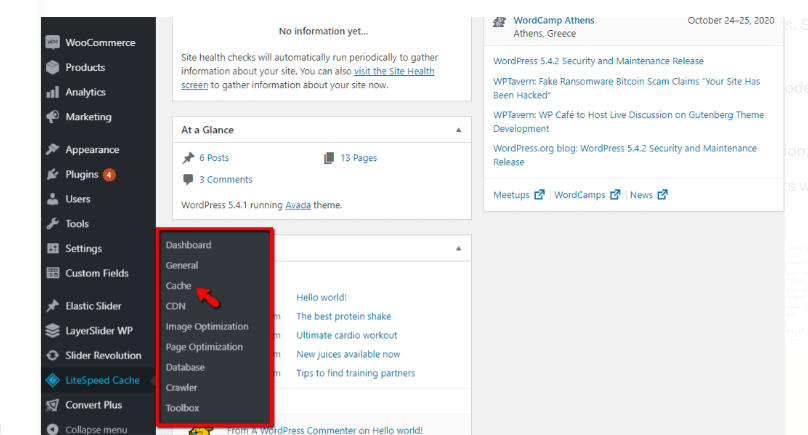
LiteSpeed Cache is free and powerful if your server uses LiteSpeed or OpenLiteSpeed. It includes server cache plus all usual features. QUIC.cloud CDN pairs well for extras.
W3 Total Cache offers free advanced options. It supports Redis, Memcached, and CDNs. Setup takes more time. Good for users who want control.
WP Super Cache from Automattic is basic and free. It focuses on page cache. Simple mode works for beginners.
FlyingPress gained fans for lightweight yet effective tools. It combines cache, optimisation, and CDN push.
Airlift emerged strong in 2025 reviews for WooCommerce sites. It handles dynamic parts well. Pick one and stick to it. Running multiples causes conflicts.
Step-by-Step to Set Up Effective Caching
Start with testing. Use GTmetrix or WebPageTest. Note load time and scores. Check server response too.
Install a plugin like WP Rocket. Activate and let defaults run. Enable page cache first. Turn on browser cache. Preload the cache so copies build.
Add minification for CSS and JS. Combine files if no breaks occur. Defer JavaScript to load after content.
Set up lazy load for images. They appear as users scroll. Connect a CDN if traffic grows. Cloudflare’s free tier works for basics. For object cache, install Redis if hosting supports it. Enable in plugin.
Test again after changes. Clear the cache each time. Look for breaks like login issues or cart problems. Exclude pages if needed.
Database optimisation helps too. Plugins clean revisions and transients. Images often slow sites the most. Use Imagify or ShortPixel alongside cache.
Using a CDN for Extra Speed
Content Delivery Networks store static files on global servers. Visitors get them from close locations. Latency drops. BunnyCDN and Cloudflare offer good value.
Setup pushes files to edges. The cache plugin integrates easily. Video and large downloads benefit most. In 2026, edge computing adds power. Some CDNs run code closer to users.
Advanced Tips for Persistent Slow Sites
If the cache is set but the speed lags, check hosting. Shared plans throttle resources. Move to a managed WordPress host like Kinsta or SiteGround.
Opcode caches like OPcache speed PHP. Most hosts enable it. Full-page cache from the server level helps with high traffic.
Monitor with the Query Monitor plugin. Find slow queries or scripts. WooCommerce or membership sites need dynamic exclusions. Cache logged-out views only.
When to Look Beyond Caching
Caching fixes most issues. But bad code or huge databases slow things. Optimise images always. Limit revisions. Clean spam comments.
Heavy themes with builders load extras. Switch if needed after caching maxes out.
Poor hosting cannot be overcome. Upgrade when traffic grows.
Final Thoughts on Speeding Up WordPress
Fix caching layers first when your WordPress site feels slow. Plugins and themes get blamed too often. Proper setup brings quick wins. Test before and after. Tools in 2026 make it easier than ever. Your visitors will notice the difference. Faster sites keep people around longer.