

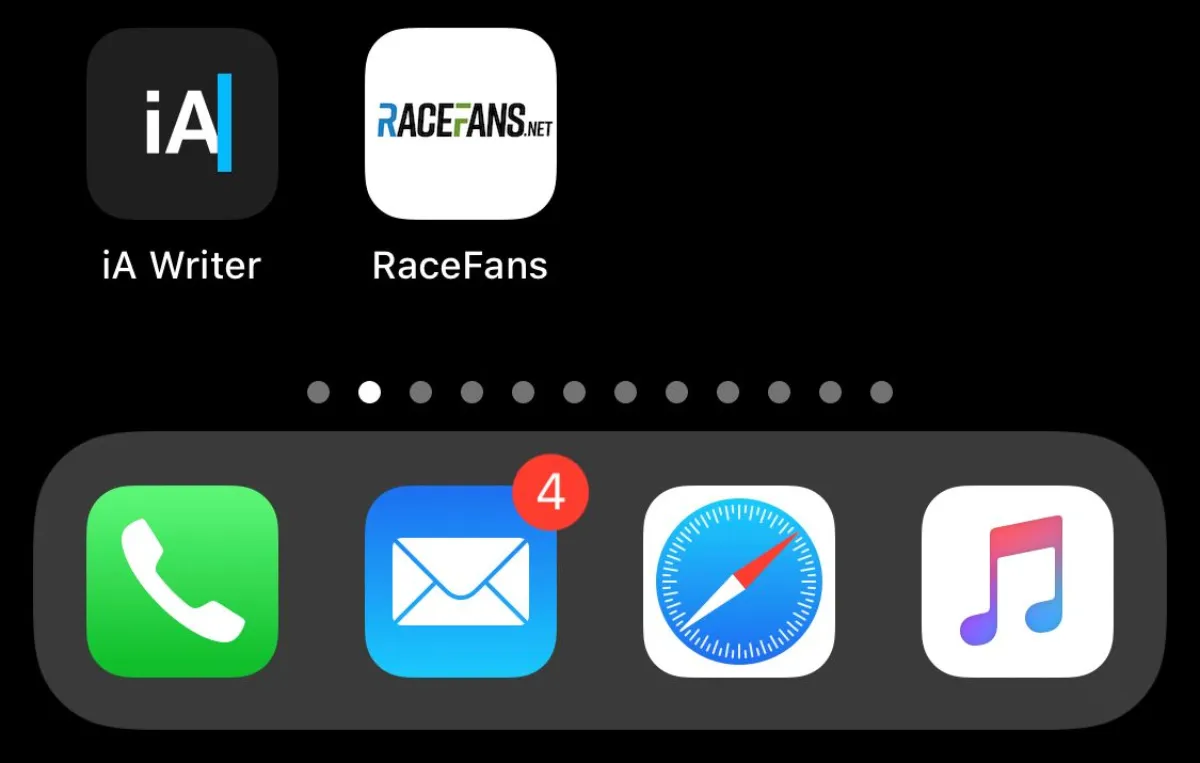
Adding an apple-touch-icon to website setups boosts mobile user experience on iOS devices. Let us fix any problems and issues arising in apple-touch-icon during configuration. This small image appears when visitors save your site to their home screen from Safari.
It creates a polished app-like feel without needing a full native application. Many site owners overlook this detail; however, it plays a key role in branding and retention. In this guide, we explore everything from basics to advanced tweaks.
What Is an Apple Touch Icon?
An Apple Touch icon serves as a custom graphic for websites on Apple devices. It replaces the default screenshot thumbnail when users add a page to their iPhone or iPad home screen.
Unlike standard favicons, these icons often feature rounded corners and no browser chrome. They load via a specific link tag in the HTML head section.
Apple introduced this feature to enhance web apps. It started with early iOS versions and evolved alongside progressive web apps. The icon helps sites stand out in a sea of bookmarks. Users tap it like any installed app, launching the site in full-screen mode if configured properly.
Apple-touch-icon Requirements Explained
Meeting apple-touch-icon requirements ensures compatibility across devices. Apple recommends PNG format for crisp rendering.
Sizes vary by device resolution. The most common is 180×180 pixels for modern iPhones. Older models might use 120×120. Transparency support allows designs with see-through areas.
Avoid JPEG, as it introduces artefacts. File names typically follow the apple-touch-icon.png pattern. Place the file in your site’s root directory for default discovery.
Safari looks for the icon automatically if no link tag exists. However, explicit declaration offers better control.
Use rel=”apple-touch-icon” in the meta tag. Multiple sizes prevent pixelation on retina displays.
Apple-touch-icon Best Practices for Optimal Display
Follow Apple Touch icon best practices to avoid common pitfalls. Design with a square canvas first. Apple applies automatic rounding, so there’s no need for manual corners.
Aim for vibrant colours that match your brand palette. Test on actual devices rather than simulators. Lighting conditions affect visibility.
Include a subtle shadow if your design benefits from depth. Keep file size under 100KB for fast loading. Provide multiple resolutions in your code.
This caters to different screen densities. Name variants like apple-touch-icon-180×180.png. Link them separately for precision.
How to Add an Apple Touch Icon to a Website Step by Step
To add an Apple Touch icon to a website, start with image creation. Use tools like Photoshop or free alternatives such as GIMP. Export in PNG with the required dimensions.
Upload the file to your server root. For subdomains, adjust paths accordingly. Insert this code in the head section: <link rel=”apple-touch-icon” sizes=”180×180″ href=”/apple-touch-icon.png”>
Refresh your site and test by adding to the home screen. Clear the Safari cache if changes don’t appear immediately.
For multiple sizes, add extra lines:<link rel=”apple-touch-icon” sizes=”120×120″ href=”/apple-touch-icon-120×120.png”>this ensures sharp display on all devices.
Apple-touch-icon Sizes and Recommendations
Apple touch icon recommended size depends on target devices. For iPhone 14 and later, use 180×180. iPads prefer 152×152 or 167×167 for different models. Here’s a quick reference:
Device Type and Recommended Size
iPhone (Retina) -> 180×180
iPhone (older) -> 120×120
iPad Pro -> 167×167
iPad Air -> 152×152
Include precomposed versions to skip Apple’s gloss effect. Append -precomposed.png to the filename. This preserves your exact design.
Fixing Apple Touch Icon Not Showing Issues
When the Apple Touch icon is not showing, check the file path first. Typos in href attributes cause failures. Ensure the image is accessible publicly.
Browser cache often holds old versions. Instruct users to delete the home screen icon and re-add it.
On your end, use version queries like ?v=2 in the URL. MIME type errors trigger the Apple Touch icon PNG error. Set server headers to image/png. HTTPS sites need secure image sources.
Apple Touch Icon Not Updating Solutions
Apple touch icon not updating frustrates many developers. iOS caches icons aggressively. Force a refresh by changing the filename slightly.
Add a query string to the link href. Example: href=”/apple-touch-icon.png?v=3″. This tricks the system into fetching anew. Remove and re-add the web clip from the device.
Combine with cache clearing in Safari settings for stubborn cases.
Apple Touch Icon Not Working on Specific Devices
If the Apple Touch icon is not working on certain models, verify the size attributes. Missing sizes lead to fallback scaling. Older iOS versions ignore large files.
Stick to under 1MB total. Test with BrowserStack or real hardware. PWA configurations sometimes conflict. Check manifest.json for icon declarations. Prioritise link tags over manifest for Safari.
Creating Apple Touch Icon 180×180 PNG Files
Design an Apple Touch icon of 180×180 png starting from vector sources. Scale SVG to exact pixels. Export with a transparent background if needed.
Use online resizers for batch creation. Input your base 1024×1024 master file. Generate all variants automatically.
Manually apply the corner radius to the Apple Touch icon if you want to avoid automatic rounding. For a 180×180 icon, set the radius to 38 pixels to match Apple’s style.
Apple Touch Icon 120×120 Precomposed PNG Guide
For legacy support, create an Apple Touch icon of 120×120 precomposed PNG. This size fits iPhone 4 and similar.
Precomposed skips the shine overlay. Design flat without gradients that clash. Test on emulators for accuracy. Include both versions in your HTML: <link rel=”apple-touch-icon-precomposed” sizes=”120×120″ href=”/apple-touch-icon-120×120-precomposed.png”>
Apple Touch Icon Background Colour Tips
Choose the Apple Touch icon background wisely. Solid colours ensure consistency. Match your site’s primary hue. For transparency, plan for dark and light modes.
Apple touch icon dark variants adapt via media queries. Use CSS variables to generate dynamically. Avoid hard patterns that lazy load and distract from the logo.
Choosing the right Apple Touch icon background colour ensures your 180×180 PNG blends seamlessly with iOS home screens. Avoid white squares on dark mode or clashing hues against user wallpapers. Use brand-aligned solids for consistency.
- Tip 1: Match your site’s primary colour. If logo is blue (#007AFF), fill background with it. Test visibility on light and dark themes.
- Tip 2: Prefer solid over transparent unless design demands it. Transparency risks unintended blends with animated iOS 18 wallpapers.
- Tip 3: For dark mode, create a variant. Use CSS media queries:
<link rel="apple-touch-icon" media="(prefers-color-scheme: dark)" href="/icon-dark.png">Invert background (e.g., #FFFFFF → #1C1C1E).
- Tip 4: Avoid gradients—they compress poorly in small sizes. Stick to flat colour.
- Tip 5: Test contrast. Use WebAIM checker; aim for 4.5:1 ratio against white/black.
- Tip 6: Set in PWA manifest too:
"background_color": "#007AFF"- Tip 7: Never use pure black (#000000)—iOS edges blur it. Use #111111.
- Tip 8: Optimise file. Solid colour compresses to less than 5KB. Use ImageOptim.
- Tip 9: Fall back safely. If no icon loads, the background colour shows behind the screenshot.
- Tip 10: Update seasonally? Use dynamic PHP:
$bg = date('n') == 12 ? '#D42D27' : '#007AFF';Handling Apple Touch Icon Transparency Properly
Apple touch icon transparency works best with alpha channels. Save as PNG-24 for full support. Test on coloured home screens. iOS 18 introduces custom backgrounds.
Ensure your icon contrasts well. Maskable icons in PWAs allow safe zones. Keep key elements centred within 80% of the canvas.
Transparency in Apple touch icons adds polish and flexibility to your mobile web presence. When users add your site to their iPhone or iPad home screen, a clean transparent background prevents ugly white squares or mismatched colours against dynamic wallpapers.
Apple devices handle alpha channels in PNG files natively, but improper setup leads to rendering issues like black halos, jagged edges, or full opacity fallback. This section covers every detail to ensure your transparent apple-touch-icon.png displays perfectly across all iOS versions and screen types.
Why Transparency Matters in Apple Touch Icons?
Most modern brand logos include transparent areas around the main graphic. Forcing a solid background clashes with iOS home screen themes, especially in dark mode or with custom user wallpapers introduced in iOS 18.
A transparent Apple Touch icon lets the system blend your design seamlessly. It also future-proofs your site as Apple continues enhancing personalisation features. Without transparency support, Safari defaults to a white fill. This breaks visual consistency, especially for dark-themed brands.
Users notice these details and associate them with lower-quality web experiences. Proper transparency maintains brand integrity even in small 180×180 or 120×120 pixel constraints.
Choosing the Right PNG Format for Transparency
Always use PNG-24 or PNG-32 with an alpha channel for Apple Touch icon transparency. PNG-8 limits colour and fails at smooth gradients in transparent areas.
JPEG never supports transparency and introduces compression artefacts that ruin small icon clarity. Export settings matter greatly.
In design tools, enable “transparency” and avoid matte colours during save. A matte colour replaces transparent pixels with a solid fill, defeating the purpose.
Check the exported file in preview apps; truly transparent areas should show a chequerboard pattern. File size remains a concern. Transparent PNGs can bloat if not optimised.
Use tools like TinyPNG or ImageOptim after export. Aim for under 50KB for 180×180 versions while preserving alpha quality.
iOS loads these icons during home screen addition, so performance impacts user perception. Designing with Transparency from the Start Begin your Apple Touch icon design on a transparent canvas.
Avoid placing elements too close to edges; Apple applies automatic rounding that can clip semi-transparent pixels. Keep core graphics within an 80% safe zone centred in the square. Anti-aliasing plays a crucial role.
Use soft edges on curved elements to prevent pixel staircasing when scaled. Test at 100%, 200%, and 300% zoom to verify smoothness.
Dark mode switching affects perceived transparency; design both light and dark variants if your brand supports theme switching.
Drop shadows require special care. Hard shadows create harsh lines against transparent backgrounds. Use subtle Gaussian blurs with low opacity.
Ensure the shadow colour adapts to both light and dark home screen modes. Pure black shadows look wrong on light backgrounds.
Export Settings for Perfect Transparency In Photoshop, choose “PNG-24” with “Transparency” checked and “Interlaced” off. Uncheck “Convert to sRGB” only if your workflow manages colour profiles strictly.
For Sketch or Figma, export at 1x, 2x, and 3x scales separately with “Include ICC Profile” disabled. Command-line tools offer more control.
Use pngquant with –quality=90-100 and –skip-if-larger to preserve transparency while reducing size. Combine with zopflipng for maximum compression without quality loss.
Script this process for consistent results across team members. Verify transparency after export. Open in macOS Preview and toggle “Show Chequerboard” under the View menu.
Any solid areas in supposed transparent regions indicate export errors. Also inspect the alpha channel in image editors; it should show gradual transitions where needed.
Implementing transparent icons in HTML code placement affects transparency rendering. Use the standard link tag with the correct path: <link rel=”apple-touch-icon” sizes=”180×180″ href=”/apple-touch-icon-180×180.png”> Ensure the href points to your transparent PNG.
Relative paths work, but absolute paths prevent issues on multi-page sites. For WordPress users adding Apple Touch Icon WordPress transparency, place files in the theme root or use full URLs.
Multiple size support requires separate transparent files:
<link rel="apple-touch-icon" sizes="120x120" href="/apple-touch-icon-120x120.png">
<link rel="apple-touch-icon" sizes="180x180" href="/apple-touch-icon-180x180.png">
Name files consistently. Avoid appending “-transparent”, as it complicates updates.
The transparency lives in the file itself, not the filename. Server Configuration for Transparency Support Web servers must serve PNG files with the correct MIME type.
Incorrect types trigger the Apple Touch icon PNG error even with perfect files.
In Apache, .htaccess should include:
AddType image/png .pngNginx configuration uses:types {
    image/png png;
}
CDN users verify edge servers respect original headers.
Some CDNs strip alpha channels during optimisation. Disable aggressive image processing or whitelist your icon paths.
HTTPS enforcement prevents mixed content warnings. Transparent icons over HTTP on HTTPS pages fail to load. Modern iOS versions block them entirely for security.
Testing Transparency Across Devices Real device testing beats simulators for transparency issues. Add your site to the home screen on iPhone 12, iPhone 16, iPad Air, and iPad Pro. Check both light and dark modes. iOS 17 introduced animated wallpapers; verify transparency holds during motion.
Long-press the icon to trigger jiggle mode. Some transparency rendering bugs only appear here. Also test in split view on iPads where icon sizes differ.
Clear the cache between tests. iOS caches home screen icons aggressively. Remove and re-add the web clip after file changes. Use private browsing mode to force fresh loads during development.
Apple Touch Icon WordPress Integration Methods
For WordPress users, Apple Touch Icon WordPress setup varies by theme. Many include customiser options. Upload via Appearance > Customise > Site Identity.
Some themes generate required sizes automatically, and there is no need for manual intervention. Plugins like RealFaviconGenerator handle everything and get things to work faster. Install, configure, and inject code automatically.
You can use the manual method: edit header.php. Add link tags before closing head.
Using Apple Touch Icon Favicon Generator Tools
An Apple Touch icon favicon generator simplifies multi-size creation. Input one high-res image. Popular options include Favicon.io and RealFaviconGenerator.
They output HTML snippets ready to paste. Download ZIP with all files. Upload to root. Copy the provided code into your template.
Apple Touch Icon Manifest for PWAs
In progressive web apps, Apple Touch Icon manifest links via web app manifest.
Define the icons array. Example JSON:
"icons": [{ "src": "/apple-touch-icon.png", "sizes": "180x180", "type": "image/png" }]Reference in HTML: <link rel="manifest" href="/manifest.json">This unifies with Android Chrome icons.
HTML Meta Apple Touch Icon Code Examples
Implementing the correct HTML meta apple touch icon code is the foundation for ensuring your website displays a crisp, branded icon when iOS users add it to their home screen. These small but powerful <link> tags live in the <head> section of your HTML and tell Safari exactly which image to use. Without them, Apple falls back to a low-resolution screenshot, harming user experience and brand perception. Below are comprehensive, real-world-tested code examples for every scenario, from basic setups to advanced multi-size, precomposed, dark mode, and PWA-integrated configurations.
The simplest way to add an Apple Touch icon is with one line of code. This is for smaller sites. This works if you only have a single 180×180 PNG in your root directory:
<link rel="apple-touch-icon" href="/apple-touch-icon.png">The recommended method for multiple sizes for all devices. Modern iOS devices have different pixel densities. Serve specific sizes to prevent blurry scaling:
<link rel="apple-touch-icon" sizes="120x120" href="/apple-touch-icon-120x120.png">
<link rel="apple-touch-icon" sizes="152x152" href="/apple-touch-icon-152x152.png">
<link rel="apple-touch-icon" sizes="167x167" href="/apple-touch-icon-167x167.png">
<link rel="apple-touch-icon" sizes="180x180" href="/apple-touch-icon-180x180.png">
By default, Apple adds a shine effect and rounds corners. Use apple-touch-icon-precomposed to disable this:
<link rel="apple-touch-icon-precomposed" sizes="180x180" href="/apple-touch-icon-180x180-precomposed.png">For the full recommended HTML Meta Apple Touch Icon Set, paste this complete block into yours for maximum compatibility:
<!-- Apple Touch Icons - Multiple Sizes -->
<link rel="apple-touch-icon" sizes="120x120" href="/apple-touch-icon-120x120.png">
<link rel="apple-touch-icon" sizes="152x152" href="/apple-touch-icon-152x152.png">
<link rel="apple-touch-icon" sizes="167x167" href="/apple-touch-icon-167x167.png">
<link rel="apple-touch-icon" sizes="180x180" href="/apple-touch-icon-180x180.png">

<!-- Precomposed Versions (no gloss) -->
<link rel="apple-touch-icon-precomposed" sizes="120x120" href="/apple-touch-icon-120x120-precomposed.png">
<link rel="apple-touch-icon-precomposed" sizes="180x180" href="/apple-touch-icon-180x180-precomposed.png">

<!-- Fallback for older devices -->
<link rel="apple-touch-icon" href="/apple-touch-icon.png">
Dark Mode Apple Touch Icons (iOS 13+)
Support light and dark home screens with media queries.
- Use inverted colors or higher contrast in dark version
- Keep transparency consistent
- Test by switching theme in Settings > Display & Brightness
<!-- Light mode (default) -->
<link rel="apple-touch-icon" sizes="180x180" href="/apple-touch-icon-light-180x180.png">

<!-- Dark mode -->
<link rel="apple-touch-icon" sizes="180x180" media="(prefers-color-scheme: dark)" href="/apple-touch-icon-dark-180x180.png">
PWA + Apple Touch Icon (Web App Manifest Integration)
In the HTML head:
<link rel="apple-touch-icon" sizes="180x180" href="/apple-touch-icon.png">
<link rel="manifest" href="/manifest.json">
In /manifest.json – iOS uses manifest icons as a fallback if tags are missing.
{
  "name": "My Awesome App",
  "icons": [
    {
      "src": "/apple-touch-icon-192x192.png",
      "sizes": "192x192",
      "type": "image/png"
    },
    {
      "src": "/apple-touch-icon-512x512.png",
      "sizes": "512x512",
      "type": "image/png"
    }
  ],
  "start_url": "/",
  "display": "standalone",
  "background_color": "#ffffff",
  "theme_color": "#000000"
}
WordPress: Add via functions.php
Avoid hardcoding in header.php. Use the wp_head hook and place in child theme’s functions.php
function add_apple_touch_icons() {
    ?>
    <link rel="apple-touch-icon" sizes="180x180" href="<?php echo get_template_directory_uri(); ?>/assets/icons/apple-touch-icon-180x180.png">
    <link rel="apple-touch-icon" sizes="120x120" href="<?php echo get_template_directory_uri(); ?>/assets/icons/apple-touch-icon-120x120.png">
    <link rel="apple-touch-icon-precomposed" sizes="180x180" href="<?php echo get_template_directory_uri(); ?>/assets/icons/apple-touch-icon-180x180-precomposed.png">
    <?php
}
add_action('wp_head', 'add_apple_touch_icons');
No Apple Touch Icon Is Specified Warnings
Tools like Lighthouse flag that no Apple Touch icon is specified. This impacts PWA scores. When tools like Google Lighthouse or Safari Web Inspector report “no Apple touch icon is specified”, your site lacks the crucial <link rel=”apple-touch-icon”> tag in the <head>. This triggers iOS to capture a blurry screenshot when users add your page to their home screen, harming brand perception.
Safari falls back to screenshot. Results in blurry or cropped thumbnails. Address by adding at least one link tag. Prioritise 180×180 for modern users.
Does Not Provide a Valid Apple-Touch-Icon Error
Audits show it does not provide a valid apple-touch-icon when paths fail. 404 errors are a common cause.
Validate URLs with browser dev tools. The network tab reveals loading issues. Use absolute paths for CDN-hosted images. Ensure CORS allows cross-origin.
Apple-touch-icon PWA Implementation Details
For Apple Touch Icon PWA, combine with service workers. Enable standalone display mode. The manifest must include start_url and display: standalone. Splash screens auto-generate from icons and background colour.
Where Is Apple-Touch-Icon Used in Practice?
Apple-touch-icon is used primarily in mobile Safari. Homescreen additions trigger it. Also appears in spotlight search results.
Desktop Safari ignores it mostly. Focus remains on the iOS ecosystem.
Apple Touch Icon Documentation from Apple
Official Apple Touch icon documentation resides in WebKit resources. Search Configuring Web Applications.
Details maskable icons for future-proofing. Recommends a 1024×1024 source. Updates with each iOS release. Check release notes for changes.
Apple Apple-Touch-Icon Naming Conventions
Stick to the Apple apple-touch-icon standard naming. Hyphenated lowercase is preferred.
Variations like apple-touch-icon-180×180.png for specifics. Avoid spaces or uppercase. Causes discovery failures on case-sensitive servers.
Troubleshooting Apple Touch Icon PNG Error
Apple touch icon PNG errors often stem from corruption. Re-export the file. Check dimensions match declaration. Mismatched sizes cause rejection. Use image optimisers to fix metadata issues.
Control the Apple Touch Icon corner radius by providing pre-rounded images. Set to 20% of width.
Or let Apple handle it with standard tags. Consistent across devices. CSS clip-path for dynamic sites, though limited support.
Apple Touch Icon Dark Mode Adaptations
Just do the Apple Touch icon in dark using prefers-colour-scheme. Multiple link tags with media: <link rel=”apple-touch-icon” media=”(prefers-color-scheme: dark)” href=”/dark-icon.png”>iOS respects the system theme automatically in recent versions.
Common Mistakes with /Apple-Touch-Icon.png Path
Placing /apple-touch-icon.png in subfolders breaks auto-discovery. Root required. Forgetting the leading slash in href. Relative paths fail on deep pages. Duplicate tags with conflicting sizes. Causes unpredictable selection.
Placing /apple-touch-icon.png in the wrong location tops the list of errors. Safari expects it in the website root, not subfolders like /images/ or /assets/. A path like /images/apple-touch-icon.png fails auto-discovery, forcing manual <link> tags. Always upload to the domain root for seamless fallback.
Typos in filenames plague developers. Variations such as Apple-Touch-Icon.png (uppercase) or apple_touch_icon.png (underscore) break on case-sensitive servers like Linux. Stick to lowercase hyphenated: apple-touch-icon.png.
Double-check spelling; even one missing hyphen triggers 404 errors. Relative paths in <link> tags cause chaos. Using href=”apple-touch-icon.png” works on the homepage but fails on deeper pages like /blog/post/.
Use absolute root-relative paths: href=”/apple-touch-icon.png”. This ensures consistency across the entire site. Forgetting the leading slash is another blunder. href=”apple-touch-icon.png” resolves relative to the current page, often pointing to /blog/apple-touch-icon.png.
Always include the slash for root access. CDN misconfigurations strip the file. Some content delivery networks rewrite or block root files. Whitelist /apple-touch-icon.png or host locally.
Verify with curl -I https://yoursite.com/apple-touch-icon.png to confirm 200 status and image/png MIME type. Cache issues persist after fixes. Browsers and iOS cache aggressively. Users see old icons despite updates.
Append ?v=2 to the href or rename the file to force refresh.Missing MIME type headers return text/plain, causing apple touch icon png error.
Configure .htaccess or nginx to serve .png as image/png.Placing multiple conflicting files confuses Safari. Having both /apple-touch-icon.png and /apple-touch-icon-180×180.png without proper sizes attributes leads to random selection.
Declare sizes explicitly in HTML.Ignoring HTTPS on secure sites blocks the icon. Mixed content policies prevent HTTP icons on HTTPS pages. Use HTTPS URLs everywhere.
/Images/Apple Touch Icon.png Folder Structures
Organise /images/apple touch icon.png in dedicated folders. Update href accordingly. Example: href=”/images/apple-touch-icon.png” keeps the root clean. Easier management for large sites.
Confirm the Apple Touch icon is specified using HTML validators. W3C checks code attributes. Lighthouse audits provide scores. Console logs in Safari show loading success.
Generating Multiple Apple Touch Icon Variants
Batch generate using scripts. Node.js with the Sharp library automates resizing. Input SVG master. Output all PNG sizes with proper naming. Integrate into build processes like Webpack.
Testing Apple Touch Icon on Real Devices
Always test on physical iPhones. Emulators miss caching behaviours. Add to the home screen multiple times. Verify updates propagate.
Share between devices via iCloud for consistency checks.
Prepare for maskable icons. Define safe zones in design. Monitor the WebKit blog for announcements.
iOS 19 may introduce new sizes. Use SVG where possible, though PNG remains standard.
Integrating Apple Touch Icon with CMS Platforms
Beyond WordPress, Shopify allows custom code in the theme. liquid. Squarespace injects via code blocks. Webflow designer panel for assets. Follow platform-specific guides for seamless addition.
Security Considerations for Apple Touch Icon Files
Host on the same domain to avoid mixed content. HTTPS is mandatory.
Minify and compress without quality loss. Prevent bloat in mobile loads. Avoid user-uploaded icons without validation. Prevent malicious files.
Performance Impact of Apple Touch Icon
Multiple large icons slow initial load. Lazy-load via JavaScript if needed. Prioritise critical sizes.
Defer to others with preload hints. Monitor with PageSpeed Insights. Icons rarely bottleneck.
Incorporate brand mascots simply. Bold outlines for small sizes. Animate with Lottie for web views and static PNG for the homescreen.
Seasonal variants for holidays. Update via dynamic links.
Comparing Apple Touch Icon to Android Equivalents
Android uses web app manifest icons. Similar but square without rounding. Provide both for cross-platform. Reuse the 192×192 base. Chrome adds its own chrome on older versions.
Apple Touch Icons and Android equivalents both create app-like home screen shortcuts but differ in implementation and flexibility. Apple Touch Icon uses HTML tags pointing to PNG files (180×180 typical).
iOS auto-applies rounded corners and gloss (unless precomposed) and supports transparency. Icons live in the site root or specified paths. Safari caches aggressively; updates need filename changes or cache clearing.
Android relies on the Web App Manifest (manifest.json) with the “icons” array defining square PNGs (192×192, 512×512 standard). Chrome adds no rounding by default but supports “purpose”: “maskable” for adaptive shapes. No auto-gloss; full design control. Updates are reflected instantly via service worker.
User Experience Benefits of Proper Apple Touch Icon
Enhances perceived professionalism. Encourages repeat visits via the homescreen. Reduces cognitive load.
Familiar app-like interface. Boosts engagement and low bounce rates in the analytics platform.
Analytics Tracking for Home Screen Additions
Indirectly track via UTM parameters in start_url. Check at the traffic sources for web app referrals or links. Survey users on discovery methods. Tracking when users add your website to their iPhone or iPad home screen reveals powerful engagement signals. Unlike standard page views, home screen additions indicate intent to return frequently, mimicking native app installs.
Direct tracking remains challenging since iOS offers no native callback, but smart workarounds using UTM parameters, referral patterns, and behavioural proxies deliver actionable insights. Start by appending UTM parameters to your PWA start_url in the web app manifest.
Track repeat visits from direct traffic with high frequency. Users returning within 24 hours via the home screen show loyalty. Combine with first-party cookies to estimate addition rates. Use service worker updates as proxies. Prompt re-adds after icon changes; spike in prompts correlates with active home screen users.
Accessibility in Apple Touch Icon Design
Ensure high contrast ratios. WCAG compliance even in icons. Alt text is not applicable, but descriptive filenames help.
Colourblind-friendly palettes. No restrictions from the Apple firm, and can be used with ease. Use freely for your sites. Respect trademarks in designs. Avoid mimicking App Store icons.
Open-source licences for generators. Stack Overflow threads on troubleshooting. A GitHub repository with generators can be of good help. Apple developer forums for beta issues.
Automating Apple Touch Icon Deployment
CI/CD pipelines come with icon generation. GitHub Actions workflows. Version control the source SVG. Build on push. Deploy with cache-busting queries. Automating Apple Touch icon deployment eliminates manual errors and ensures consistent, cache-busted icons across environments. Use build tools to generate, optimise, and inject HTML meta tags dynamically. Node.js + Sharp Script (save as generate-icons.js):
const sharp = require('sharp');
const fs = require('fs');
const path = require('path');

const sizes = [120, 152, 167, 180];
const input = 'src/icon-master.svg';
const outputDir = 'public/icons';
const version = Date.now();

fs.mkdirSync(outputDir, { recursive: true });

sizes.forEach(size => {
  sharp(input)
    .resize(size, size)
    .png({ quality: 90 })
    .toFile(`${outputDir}/apple-touch-icon-${size}x${size}.png`);
});

const html = sizes.map(s =>
  `<link rel="apple-touch-icon" sizes="${s}x${s}" href="/icons/apple-touch-icon-${s}x${s}.png?v=${version}">`
).join('\n');

fs.writeFileSync('public/head-icons.html', html);
Run via npm run build. Output: versioned PNGs + ready <link> tags. For GitHub Actions Workflow:
name: Deploy Icons
on: [push]
jobs:
  build:
    runs-on: ubuntu-latest
    steps:
      - uses: actions/checkout@v4
      - run: npm ci
      - run: npm run build
      - uses: actions/upload-pages-artifact@v3
        with: { path: 'public' }
Or WordPress Hook (auto-inject in functions.php):
add_action('wp_head', function() {
    $v = filemtime(get_stylesheet_directory() . '/icons/apple-touch-icon-180x180.png');
    echo '<link rel="apple-touch-icon" sizes="180x180" href="/icons/apple-touch-icon-180x180.png?v=' . $v . '">';
}, 1);
Evolving Standards Beyond Current Apple Touch Icon
WebXR integrations may use 3D icons. Future spec explorations. Adaptive icons like Android. Shape-changing based on theme.
Stay updated via WHATWG discussions. This comprehensive approach ensures your site shines on iOS home screens. Just do it step by step for continuous improvements. Regular audits keep everything updated as devices evolve and technology expands.